AirTAK C-UAS Getting Started
AirTAK C-UAS should operate plug & play out of the box with nothing more than a TAK EUD (ATAK, WinTAK, iTAK) connected to AirTAK C-UAS's WiFi hotspot.
Initial setup
Using WiFi
This method uses AirTAK C-UAS' built-in WiFi hotspot to reconfigure the device to connect to an existing WiFi network, disabling the on-board WiFi hotspot.
- Connect the USB power supply to the device. Ensure color-coded direction of connector (yellow to yellow, black to black).
- After a 2 minutes, a new WiFi network should appear with a name like
AryaOS-XXXX. Connect to this network. - From a web browser (Chrome, Safari), browse to: http://aryaos.local . If that doesn't resolve, try: http://10.41.0.1
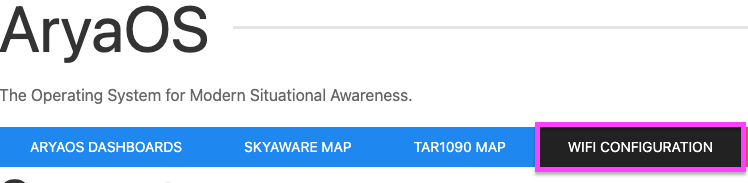
- Click WiFi Configuration, and select the WiFi network you'd like AirTAK C-UAS to connect to.
Using Ethernet
This method uses the built-in Ethernet port to connect to an existing network.
- Connect the USB power supply to the device. Ensure color-coded direction of connector (yellow to yellow, black to black).
- Connect an ethernet cable to the external ethernet port of the AirTAK.
- From a web browser (Chrome, Safari), browse to: http://aryaos.local . If that doesn't resolve, try: http://10.41.0.1
Connecting an EUD
AirTAK C-UAS has been tested with all TAK Products, including iTAK, WinTAK & ATAK. Out-of-the-box, the device will transmit Cursor on Target CoT to the multicast Mesh SA group of 239.2.3.1:6969. The destination for CoT can be changed by accessing the AirTAK C-UAS dashboard at http://aryaos.local or http://10.41.0.1